
How to Get Your Website Indexed by Google — and Ready for AI Search — 2026

Updated: Aug 21
Last updated: August 20, 2026
A page can be live and still be missing from Google.
This does not always mean that the website is broken. Google may have found the page but decided not to index it yet.
The first step is to find out where the problem happens. Can Google find the page? Can it crawl the page? Is indexing allowed? Does the page offer useful and original information?
These checks also matter for Google AI Search. A page must be indexed before it can appear as a supporting link in Google AI Overviews or AI Mode.
This guide explains the process in simple steps. It also includes Wix and Google Search Console checks.
Crawling, Indexing, and Ranking Are Different
Google Search works in stages.
Discovery means Google finds a URL. It may find the URL through a sitemap or a link from another page.
Crawling means Google visits the page and reads its content.
Indexing means Google stores information about the page in its search index.
Ranking happens after indexing. Google decides when and where the page may appear in search results.
A page can be crawled without being indexed. It can also be indexed without ranking well.
This difference matters. If a page is not indexed, it cannot compete normally in Google Search. It is also not eligible to appear as a supporting link in Google AI Overviews or AI Mode.
How to Get Your Website Indexed by Google
Use the steps below in order. Start with access and indexing settings. Then check the page itself.
Step 1: Make Sure Indexing Is Allowed
The page must be public. It should not require a password or member login.
In Wix, go to SEO & GEO in your site dashboard. Open SEO Settings. Make sure search engines are allowed to index the site.
Next, check the blog post. Open its SEO settings. Make sure Let search engines index this page is enabled.
These settings make the page eligible for indexing. They do not guarantee that Google will index it.
Step 2: Connect Google Search Console
Google Search Console shows how Google sees your website.
You can connect a Wix site through the Wix SEO Setup Checklist. Wix can then submit your sitemap to Google.
After the connection is complete, use Search Console to check the page. You can see when Google last crawled it. You can also check indexing permission and the selected canonical URL.
Step 3: Check Your Sitemap
Every Wix site has a sitemap. You can usually find it at:
Open the Sitemaps report in Search Console. Confirm that the sitemap was processed successfully.
A sitemap helps Google discover your pages. It does not guarantee indexing or better rankings.
Step 4: Inspect the Page URL
Open Google Search Console. Paste the full page URL into the inspection bar.
Check whether the URL is on Google. If it is not indexed, review the reason in the Page Indexing section.
Look at these fields:
- Page fetch
- Crawl allowed
- Indexing allowed
- User-declared canonical
- Google-selected canonical
- Last crawl
Next, click Test Live URL. Confirm that Google can access the current page.
Check the rendered page too. Make sure the main text and links are visible.
Step 5: Check the Canonical URL
A canonical URL tells Google which version of a page is the main version.
Compare the user-declared canonical with the Google-selected canonical.
They should normally point to the page you want indexed.
If Google chooses another URL, look for duplicate pages. Check old URLs, URL parameters, and repeated content.
Step 6: Add Internal Links
Google often discovers pages through links.
Link to the article from relevant pages. Good options include your Blog page, an SEO service page, and related articles.
Use clear link text. For example:
- learn how Google indexing works
- check why a page is not indexed
- improve Wix SEO
Important articles should not be hidden deep inside the website.
A Real Client Example: Before and After
Here is a real example from one of my client projects.
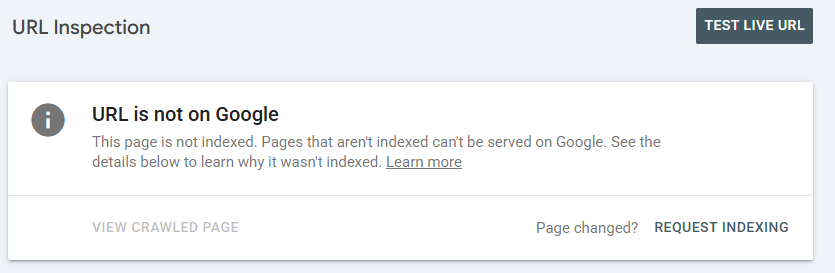
Before the updates, Google Search Console showed “URL is not on Google.” This meant the page was not included in Google’s index and could not appear as a normal search result.
Before: The client’s page was not indexed by Google.
After: Google Search Console confirmed that the client’s page was indexed.

The checklist helped remove common indexing problems. However, requesting indexing does not guarantee immediate results. Google still decides whether and when to index each page.
What Does "Crawled Currently Not Indexed" Mean?
This status means Google visited the page but did not add it to the index.
Google may index the page later. It may also remain unindexed.
This status does not prove that there is a technical error. Start by checking page fetch, crawling permission, indexing permission, and canonical settings.
If those checks are normal, review the page itself.
Common areas to check include:
- thin content
- repeated or near-duplicate content
- a broad title with a short answer
- weak internal links
- no original examples
- unclear search intent
Improve the page before asking Google to crawl it again.
Improve the Page Before You Request Indexing
Technical access is only one part of indexing.
Google also needs a reason to keep the page in its index.
Ask these questions:
- Does the page answer one clear question?
- Does the title match the content?
- Does the article explain the topic in enough detail?
- Does it include original examples or experience?
- Is it too similar to another page?
- Can a beginner follow the steps?
Add details from real work. Wix screenshots can help. Search Console screenshots can also help.
A short case example is useful too. Show the problem, the checks you made, and what you changed.
Make the Content Easy to Read
A clear page is easier for people to use. It is also easier for search systems to understand.
Use one H1 for the main topic. Use H2 headings for the main sections. Use H3 headings for smaller steps or questions.
Keep paragraphs short. Use lists when they make a process easier to follow.
Answer the main question near the top of the page. Do not make readers search for it.
Use the words your readers use. Avoid repeating the same keyword in every paragraph.
Wix Blog lets you edit the title tag, meta description, URL, and indexing setting for a post.
You can also use headings, images, alt text, and internal links inside the article.
Add an FAQ only when it helps the reader. Structured data must match the visible content. Markup does not guarantee a rich result.
Show Who Created the Content
Add the author’s name and a short bio.
Explain why the author understands the topic. For this article, include Wix Studio and SEO experience.
Link to reliable sources when you make technical claims.
Use real screenshots and examples when possible. Remove private client information before publishing them.
These details help readers check the information and decide whether to trust it.
Build Trust Beyond Your Website
Your website is only one part of your online presence.
Keep your business name, services, and contact details consistent across trusted profiles.
Share useful ideas on platforms your audience uses. LinkedIn may be helpful for professional services. Google Business Profile may help a local business.
Join relevant discussions when you have something useful to add. Do not post the same link everywhere.
A mention from a relevant website can also help people discover your brand.
How Google Indexing Connects With AI Search
Google says a page must be indexed to be eligible as a supporting link in AI Overviews or AI Mode.
There is no special AI schema that guarantees inclusion. The same SEO basics still matter.
Your page should be crawlable. Important information should appear as text. Internal links should be easy to follow. The content should be useful and original.
Other AI platforms may use different systems. Some use their own crawlers or search partners.
Google indexing can improve discoverability. It does not guarantee that every AI platform will cite or recommend the page.
Track AI and Search Visibility
Use more than one metric.
Google Search Console shows indexing, search queries, clicks, impressions, CTR, and average position.
Google Analytics 4 shows website visits, landing pages, engagement, and leads.
Ahrefs or Semrush can track rankings, competitors, and backlinks.
You can also check whether AI tools mention your brand or link to your website. Record the prompt, date, location, and result.
AI answers can change. One test does not prove that a brand is visible or invisible.
Google Indexing Checklist for Beginners
A recent platform migration can also delay indexing. Read this guide on how to migrate your website to Wix without losing SEO before requesting another crawl.
Before you request indexing, check the following:
- The page is public.
- Search engines are allowed to index it.
- The page returns a successful status.
- The URL appears in the sitemap.
- The canonical URL is correct.
- Google can see the main text after rendering.
- The page has one clear topic.
- The content is useful and original.
- Relevant pages link to it.
- The title, H1, and content match.
After a real update, run Test Live URL. Then use Request Indexing.
A request does not guarantee indexing. Repeating the request does not make Google crawl faster.
Common Questions About Google Indexing
How long does Google indexing take?
There is no fixed timeline. It may take a few days or a few weeks. Some pages may not be indexed.
Does submitting a sitemap guarantee indexing?
No. A sitemap helps Google find your pages. It does not guarantee indexing or rankings.
Does Request Indexing guarantee that my page will appear?
No. It asks Google to crawl the page again. Google still decides whether to index it.
Should every website page be indexed?
No. Focus on pages with a clear purpose and unique value. Thank-you pages, private pages, and some system pages do not need to appear in search.
Must a page be indexed to appear in Google AI Search?
Yes. A page must be indexed and eligible for a search snippet to appear as a supporting link in Google AI Overviews or AI Mode.
Start With the Basics
Getting indexed starts with a page that Google can access and understand.
Check the Wix indexing settings. Connect Search Console. Review the sitemap and canonical URL. Add useful internal links.
Then look at the content. Give the page one clear purpose. Add details that help the reader solve a real problem.
Request indexing only after you make a useful change.
These steps can improve your chance of appearing in Google Search. They also prepare the page for Google’s AI Search features.


Comments